AI-powered video editing has completely changed the way we create content in 2026.
Those days of taking hours trimming clips, adding subtitles, cleaning audio, and resizing videos for different platforms are gone.
It was exhausting!
Now, with AI tools, you can do all of that in minutes.
Seriously – Just type a prompt, let the AI handle the edits, and focus on the creative side of things.
Whether it’s YouTube videos, Instagram Reels, TikToks, or even marketing promos, these tools let you scale your content without burning out.
But here’s the thing – not every AI video editor is worth your time.
Some are great for social media clips, some for cinematic or experimental videos, and others for marketing or avatar-based content.
That’s why I’ve put together this list of the 15 best AI video editors for content creators in 2026, based on what actually works in your workflow.
By the end of this guide, you’ll know exactly which tool to pick depending on what type of content you want to create, and which ones can save you the most time.
Read also,
- 5 Best AI Shorts Video Generator Tools to Create Viral Content in 2025
- 50+ ChatGPT Prompts For Payroll Managers in 2026
| Tool Name | Best For | Key AI Features | Platforms | Free Plan | Starting Price |
|---|---|---|---|---|---|
| Runway | AI-generated & cinematic video | Text-to-video, background remover, AI motion tracking, object inpainting | Web | Yes | ~$15/month |
| Descript | Podcast & talking-head editing | Edit by text, filler word removal, voice clone, screen recorder | Windows, Mac | Yes | ~$12/month |
| CapCut | Social media creators | Auto captions, AI cut, templates, voice effects | Mobile, Web, Desktop | Yes | Free / Pro ~$10/month |
| Adobe Premiere Pro (Firefly AI) | Professional editing | Generative fill, auto tagging, AI speech enhance, smart reframing | Windows, Mac | No | ~$22/month |
| Kapwing | Teams & online creators | Auto subtitles, background remove, resize, smart cut | Web | Yes | ~$16/month |
| VEED.io | Fast online editing | AI subtitles, voice translate, noise removal | Web | Yes | ~$12/month |
| Pika Labs | Experimental AI video | AI-generated scenes, text-to-video animations | Web, Discord | Limited | TBD |
| Luma AI | 3D & cinematic AI | Text-to-video, 3D capture, cinematic effects | Web | Limited | ~$20/month |
| Synthesia | AI Avatar videos | AI presenters, 100+ voices, language support | Web | No | ~$22/month |
| HeyGen | Talking head videos | Face swap, lip sync, script to video | Web | No | ~$24/month |
| Pictory | Blog to video | Text-to-video, auto highlight, captions | Web | Trial | ~$19/month |
| Opus Clip | Viral short clips | Auto highlight detection, captions, hooks | Web | Limited | ~$15/month |
| Filmora (Wondershare) | Beginner editors | AI cut, smart background, voice enhance | Windows, Mac | No | ~$29/year |
| InVideo | Marketing videos | Script-to-video, 5000+ templates | Web | Yes | ~$20/month |
| Canva Magic Studio | Easy video creation | AI video/images, Magic Design, captions | Web, Mobile | Yes | ~$14/month |
Why AI Video Editing Matters for Content Creators in 2026
AI video editing tools have completely changed the game of editing in 2025 and the upcoming 2026.
Now, with AI tools, all that heavy lifting is handled automatically.
The AI can detect the best moments, remove filler words, generate subtitles, improve audio, and even create full videos from a simple text prompt.
Ultimately you can spend less time stuck in editing and more time brainstorming, storytelling, and growing my channel.
What really blows you away is how much these tools can enhance creativity.
You can experiment with cinematic effects, generate AI avatars, repurpose long content into short clips, or translate videos into multiple languages without breaking a sweat.
I don’t think I could keep up with today’s content demands without AI – it’s not just a tool; it’s like having a full editing team at my fingertips.
How I Chose the Best AI Video Editors
When I started testing AI video editors for 2026, I didn’t just pick the popular ones on a list.
The process is here.
I opened each tool myself and asked, “Can this actually save me hours on my editing workflow?” For me, that was the real test.
I paid close attention to how the AI handles repetitive tasks. For example, can it automatically remove filler words without messing up the flow?
Can it generate subtitles that actually match the speech? Could I take a blog post or script and turn it into a video in minutes, instead of spending hours on manual edits?
Those were the features that mattered to me.
Next, I looked at how it fits into my workflow.
I wanted tools that I could use seamlessly alongside my usual software. Some editors promised AI magic but ended up slowing me down because their interfaces were confusing.
I only kept the ones that let me jump in and create videos without spending half the day learning menus.
Finally, I tested real-world results. I uploaded my own clips, tried to create short social videos, YouTube content, and marketing promos.
The editors who gave me high-quality output without forcing me to fight with the software were the ones I included in this list.
Quick Picks: Best AI Video Editors by Use Case
So here, I’m not listing random names. These are my go-to AI video editors for specific use cases, the ones I personally open depending on the kind of content I’m making that day. Quick, simple, and straight from my workflow.
Runway – Best for AI-Generated & Cinematic Video
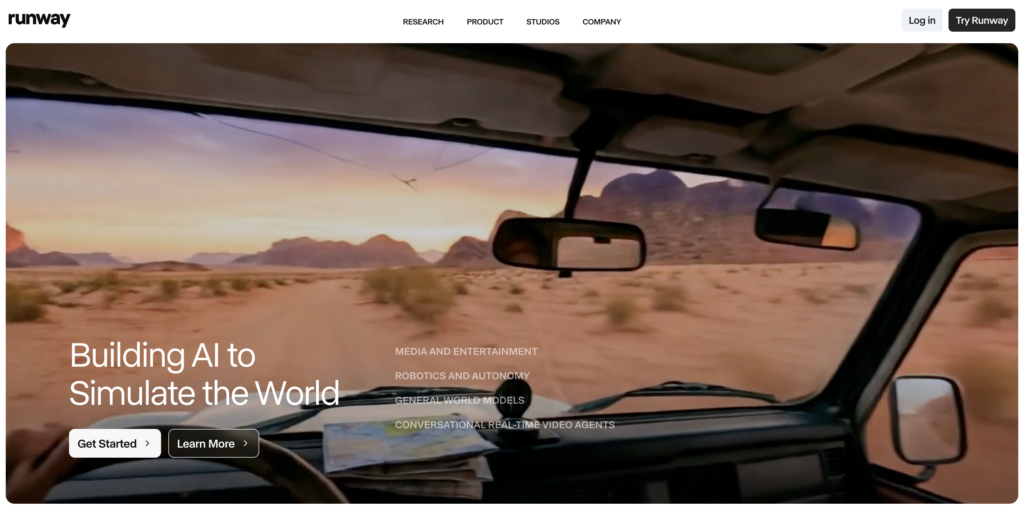
If you love experimenting with AI for video creation, Runway ML is honestly a game-changer.
I remember the first time I tried it, I typed a simple text prompt imagining a cinematic sunset over a futuristic city, and within minutes, the AI turned it into a short video clip that looked like something out of a high-budget production.
What really sets Runway apart for me is how versatile it is.
You’re not just limited to generating clips from scratch; you can feed it images, existing footage, or even combine different assets to create something truly unique.
And then comes the equally impressive editing side.
I’ve spent hours experimenting with object removal, background replacements, motion tracking, and color grading, and the results are surprisingly professional, even if you don’t have a heavy-duty PC.
One thing I love about Runway is that it encourages experimentation.
Sometimes the AI surprises you with creative results, which is perfect when you are brainstorming ideas for social media videos or short trailers.
Of course, it’s not perfect.
Complex human motion or longer videos can still be tricky, and you do have to tinker with prompts to get the exact look you want.
But for fast, cinematic, AI-generated content that looks polished and professional, I keep coming back to Runway.
Honestly, if you’re trying to create visually stunning clips without a full production crew or expensive equipment, this tool is one of the best allies you can have in 2026.
Descript – Best for Edit-by-Text and Podcast Videos
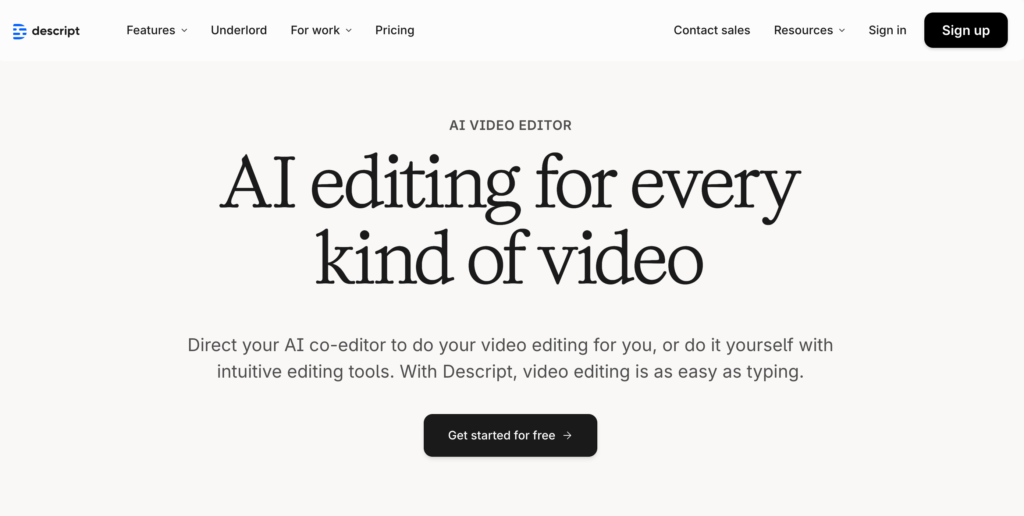
If you create talking-head videos, podcasts, or online courses, you’ll understand the struggle of editing long recordings.
That’s exactly why I love Descript. From the first moment I opened it, I felt like I had discovered a completely new way to edit video, it feels more like editing a document than wrestling with a traditional timeline.
You simply upload your video or audio, and Descript transcribes everything. Then, when you want to cut out mistakes, long pauses, or even “ums” and “ahs,” you just delete the words in the transcript.
The video magically follows your edits.
I can’t tell you how much time this has saved me on content that used to take hours to trim and polish.
Beyond basic editing, Descript has a ton of features that make it feel like a complete content studio.
I’ve experimented with Overdub, their AI voice-cloning feature, to fix mistakes without re-recording entire sections – it’s surreal how accurately it mimics my own voice.
Automatic captions and subtitles are also built in, which is a lifesaver when you’re creating content for multiple platforms like YouTube, Instagram, or LinkedIn.
And if you’re producing a podcast, Descript feels like it was made just for that; you can mix audio, remove background noise, adjust levels, and even add music without needing separate software.
What I personally love about Descript is how beginner-friendly it is while still being powerful enough for professionals.
I’ll recommend it to those who struggle with editing and want to focus more on storytelling than technical details.
I know, like other tools, it’s not perfect for cinematic VFX-heavy work, but that’s not what it’s designed for.
If your main goal is to create clear, polished talking-head videos, tutorials, or podcasts – and you want to do it fast without compromising quality – Descript is hands-down my go-to tool.
Every time I use it, I feel like I’m saving hours while actually producing better content than I used to.
CapCut – Best Free AI Video Editor for Social Media
If you want to create videos for Instagram, TikTok, or YouTube Shorts, CapCut has probably already become your best friend.
It’s actually very approachable, even if you’ve never touched a video editor before; you can jump in and start creating eye-catching content within minutes.
The AI features are what really make it shine. From automatic captioning to smart background removal and AI-driven transitions, CapCut helps create polished videos without spending hours on editing.
I remember one day when I wanted to turn a 10-minute raw clip into a 60-second social media reel. Normally, I would have spent half a day cutting, cropping, and syncing audio. With CapCut, it was done in under 30 minutes, and it actually looked professional.
CapCut handles templates and AI effects like a charm.
You can experiment with cinematic filters, dynamic text animations, and music that matches the mood of your video. It’s like having a mini creative studio in your pocket.
I often use it when I’m brainstorming ideas for social content because it encourages experimentation – sometimes the AI suggests a cut or effect that I wouldn’t have thought of, and it instantly elevates the video.
And the best thing? CapCut is completely free, which is perfect for creators like me who want professional results without a subscription.
Of course, it’s not meant for full-length cinematic productions or complex VFX projects, but for social media content, it’s hard to beat.
Whether I’m making quick tutorials, viral clips, or behind-the-scenes videos, CapCut consistently helps me produce content that looks polished and engaging, without the usual stress and learning curve of traditional editors.
If you’re serious about social media videos and want a fast, AI-powered tool that’s easy to use, CapCut is definitely my go-to.
Adobe Premiere Pro (Firefly AI) – Best for Professional Editing
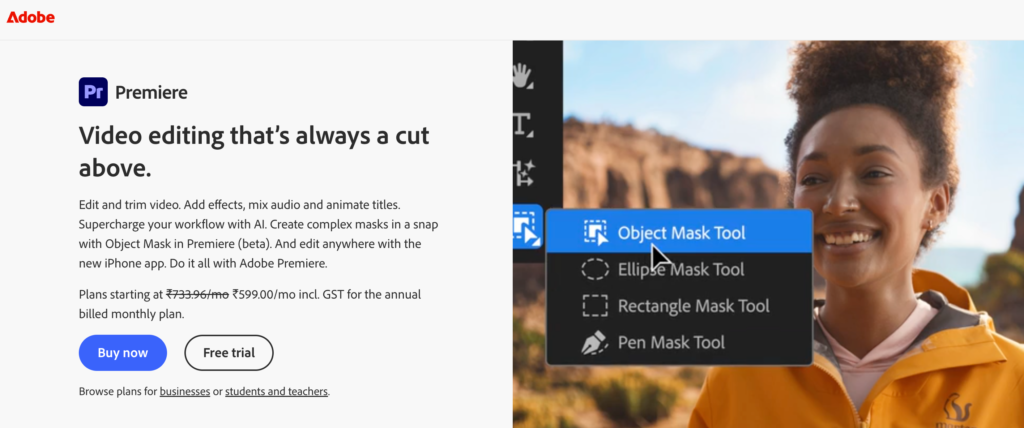
If you’re serious about creating professional-quality videos, Adobe Premiere Pro has always been the gold standard, and now, with Firefly AI built in, it has become even more powerful.
Adobe seamlessly integrated AI without taking away control – you still have the precision of a professional editor, but now with AI suggestions that actually save time.
Firefly can generate backgrounds, textures, or even entire design elements directly in Premiere, which is perfect when you’re trying to visualize concepts or enhance cinematic scenes.
The automatic audio clean-up and captioning tools also make life so much easier for tutorials, vlogs, and marketing content.
The combination of Premiere’s professional timeline and Firefly’s AI generation means you can produce high-end cinematic work without having to switch between multiple apps.
Well, Premiere Pro is not for beginners – there’s a learning curve, and it requires a capable computer to run smoothly.
But if you’re committed to creating polished, professional content, especially for YouTube, ads, or short films, there’s really no alternative that combines flexibility, depth, and now AI-powered speed quite like this.
Kapwing – Best Online AI Video Editor for Teams
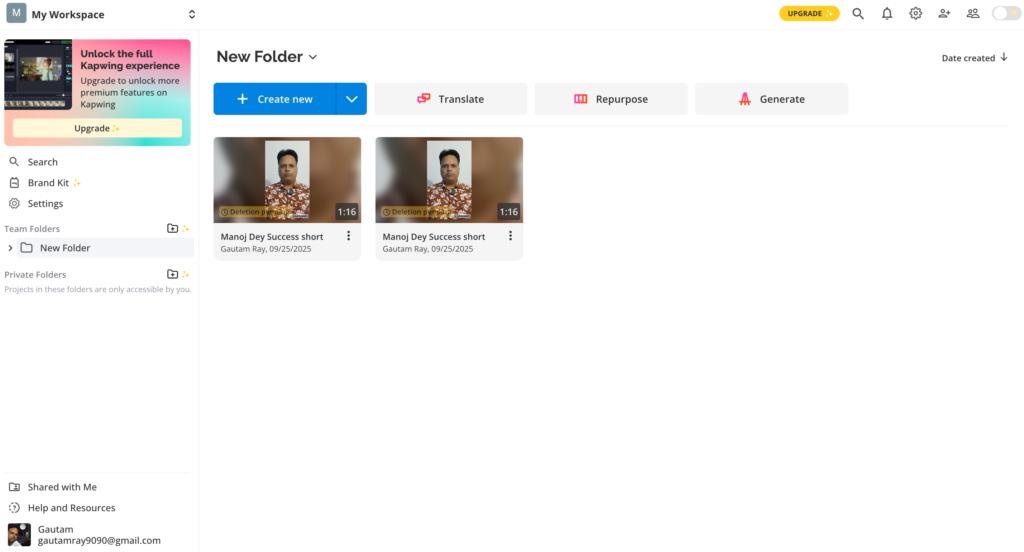
When working with a team on content creation, Kapwing will become one of your favorite tools for collaborative video editing.
There’s no complicated software to install, and everyone on the team can jump in from their browser.
Personally, I’ve used it for social media campaigns and short-form content, and it’s amazing how quickly you can turn an idea into a polished video.
With AI-powered tools built right in, Kapwing can automatically generate subtitles, suggest edits, remove backgrounds, and even create captions that match the timing of your speech perfectly.
It’s these little time-savers that make working in a team so much smoother.
Its collaborative workflow is really amazing. When multiple people are working on the same video, everyone can comment, edit, and share feedback in real time.
Normally, coordinating revisions would have taken hours of back-and-forth emails, but with Kapwing, a team can finish the project in less than a day.
Adding transitions, resizing videos for different platforms, and quickly creating versions optimized for YouTube, TikTok, or Instagram are very easy in Kapwing.
Kapwing isn’t meant for complex, cinematic productions, but for teams producing social media content, marketing videos, or tutorials; it’s a lifesaver.
If you want a tool that keeps your team aligned while making video creation faster and easier, Kapwing is definitely one of my top picks in 2026.
VEED.io – Best for Auto-Subtitles & Social Videos
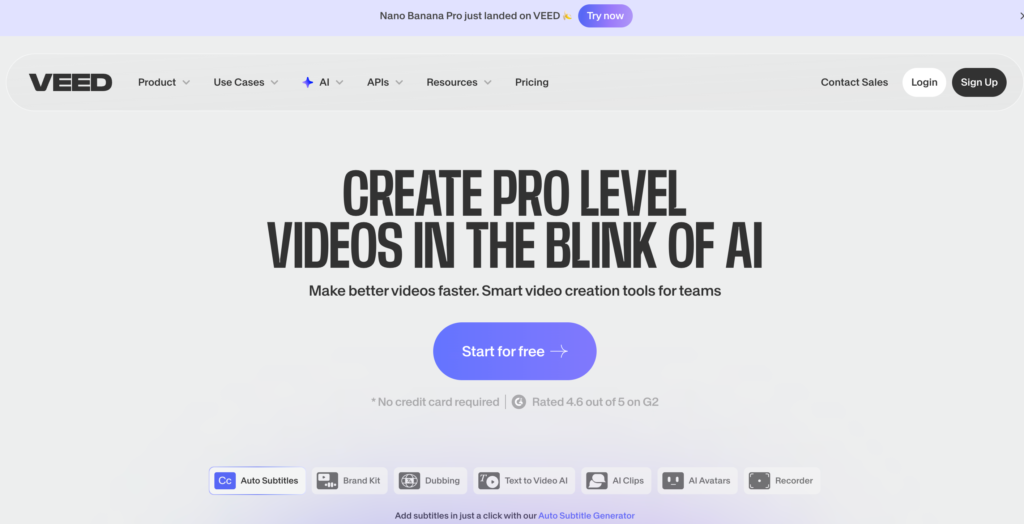
Another great tool for social media content is VEED.io, which quickly becomes indispensable.
What really makes VEED stand out is its AI-powered auto-subtitles. You don’t need to spend hours typing captions or syncing them manually – AI listens to the video, generates accurate subtitles, and even allows us to tweak the timing or style.
It’s such a time-saver, especially when repurposing long tutorials or webinars into short clips.
Beyond subtitles, VEED makes social video creation effortless.
VEED can help with things like auto-cropping, background removal, and even generating simple effects or text animations.
For creators like me who focus on social media, marketing videos, or online tutorials, it’s a goldmine. I use VEED whenever I want to streamline my workflow and make content that’s ready to publish quickly.
If you need a tool that helps you save time while maintaining professional-quality social videos, VEED.io should be one of your top picks in 2026.
Pika Labs – Best for Experimental AI Video Creation
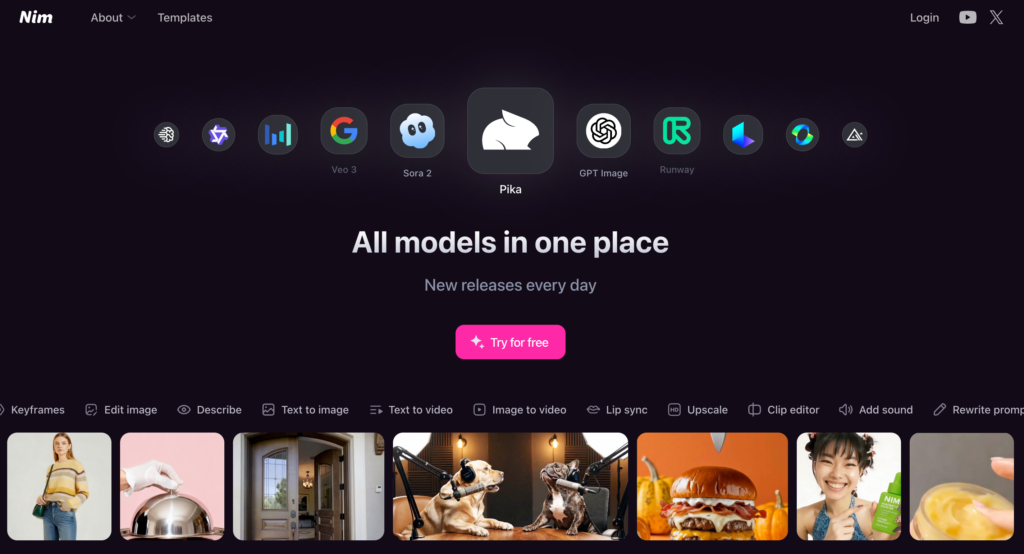
Do you enjoy pushing the boundaries of what AI can do with video? Then, Pika Labs is an absolute favorite.
The first time I tried it, I was blown away by how quickly I could generate creative, experimental clips just from a text prompt.
It’s the kind of tool that sparks ideas rather than just executing them – sometimes the AI surprises you with visuals you wouldn’t have imagined yourself.
I’ve found it especially useful when I’m brainstorming concepts for social media content, short experimental films, or mood reels for a project.
What I love about Pika Labs is that it encourages experimentation without any steep learning curve.
You can play with different prompts, styles, and visual effects, and instantly see the results.
In a session, when I was trying out, it had generated several unique interpretations that I could then use as inspiration for other projects.
It’s almost like having a creative partner who never runs out of ideas.
Well, Pic Labs is not built for cinematic productions or long-form videos, but that’s not what makes it special.
Its strength lies in exploration, creativity, and speed – perfect for content creators, marketers, or designers who want to experiment with new visual concepts quickly.
If you want to play with AI in a fun, experimental way and generate ideas you might not have thought of, Pika Labs is one of the most exciting tools to try in 2026.
Luma AI – Best for 3D & Cinematic AI Video
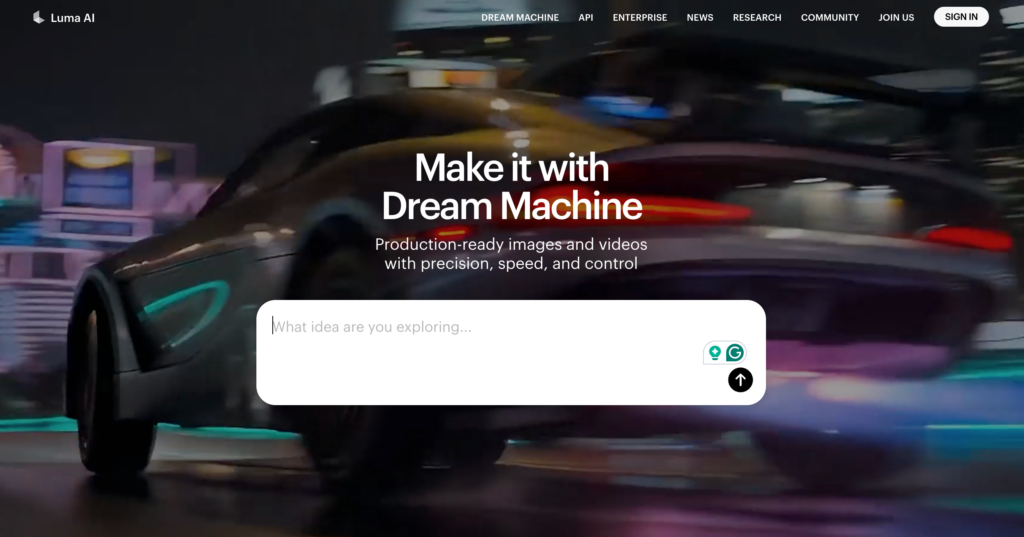
If you’ve ever wanted to bring 3D worlds to life without spending weeks in modeling software, Luma AI is a tool you’re going to love.
It really amazed me how it could take simple inputs and generate immersive, cinematic-quality 3D video scenes.
It felt like stepping into the future of video creation. with its ability to handle depth, lighting, and realistic camera movements.
It gives your AI-generated videos a professional, cinematic feel that’s hard to achieve with most other tools.
Luma AI is better for experimenting with futuristic cityscapes, dynamic environmental scenes, or short cinematic clips for social media.
The results are often surprisingly polished because this AI tool captures perspective, motion, and even subtle lighting effects that make the visuals feel real.
One thing I love is how easy it is to iterate: I can tweak angles, lighting, or prompts and immediately see new versions, which keeps the creative process fast and fluid.
It’s the kind of tool that sparks inspiration because you can go from idea to fully visualized 3D clip in a fraction of the time traditional 3D workflows would require.
I your goal is to create cinematic, experimental, or 3D-enhanced videos quickly, it’s phenomenal Luma AI sounds perfect.
For creators who want to explore 3D storytelling or generate high-quality cinematic AI video in 2026, Luma AI has become one of my go-to tools.
Synthesia – Best for AI Avatar Videos
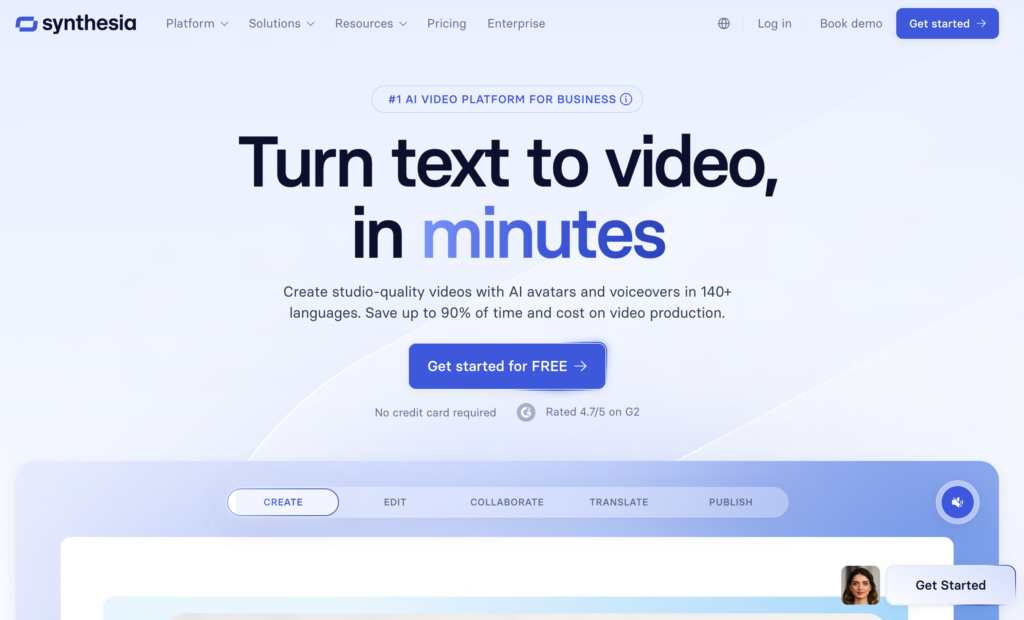
Do you want to create videos with professional presenters without hiring an actual crew? Then Synthesia is a tool that instantly becomes your best friend.
The first time I experimented with it, I was amazed at how realistic the AI avatars looked and sounded.
You can type in a script, pick an avatar, choose a language, and within minutes, have a polished video ready to share.
You can create from explainer videos to tutorials, training content, or even social media clips, without the usual overhead of recording, editing, or scheduling talent.
Synthesia is easy to use.
You can adjust tone, gestures, background, and even clothing to match the style and brand of your content.
Well, it’s not perfect for cinematic storytelling or creative visual effects, but that’s not what it’s designed for.
Its strength lies in efficiency, consistency, and accessibility.
Synthesia is the best choice if you want professional, avatar-driven videos without the hassle of filming, editing, or voice recording.
For anyone creating educational content, corporate training, or quick explainer videos in 2026, Synthesia can be a go-to AI tool.
It’s like having a virtual presenter available 24/7 – and that’s incredibly powerful.
HeyGen – Best for Talking Head AI Videos
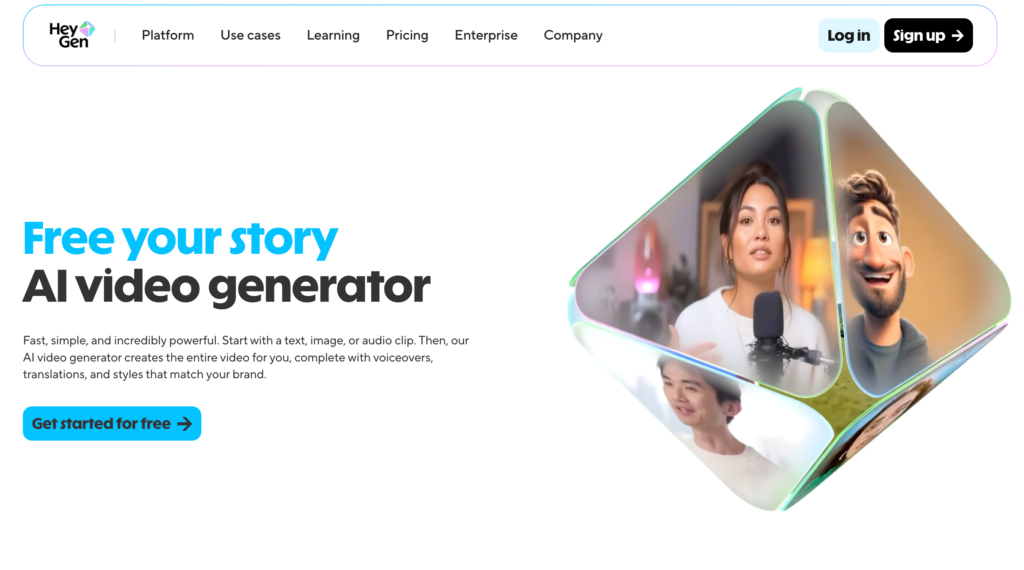
Now come to talking-head content for tutorials, social media, or marketing.
HeyGen is one of those tools that instantly changes the game in this category.
The first time you try it, you’ll be amazed at how quickly you can turn a script into a realistic talking-head video without needing a camera, lights, or any production setup.
You just type what you want to say, pick an AI presenter, and within minutes, you get a polished, professional-looking video.
It feels like having your own virtual spokesperson ready whenever you need one.
What you’ll love about HeyGen is the level of customization it offers. You can adjust gestures, expressions, backgrounds, and even the voice tone, which makes your videos feel natural and engaging.
Think of a project where you need to create multiple product explainer videos in a short time frame. Normally, you’d have to hire presenters, schedule shoots, and record multiple takes.
But with HeyGen, you can generate all the videos in a fraction of the time while keeping everything consistent and visually appealing.
Of course, HeyGen isn’t meant for cinematic storytelling or heavily stylized visuals, but that’s exactly why you’ll find it so practical.
Its real strength lies in efficiency, realism, and ease of use. You’ll find yourself reaching for HeyGen whenever you want high-quality talking-head videos fast, without any production hassle.
And if you’re a creator, educator, or marketer looking to scale video content in 2026, HeyGen quickly becomes one of your go-to AI tools. It’s like having a reliable on-demand presenter at your fingertips – making content creation feel effortless.
Pictory – Best for Turning Blogs into Videos
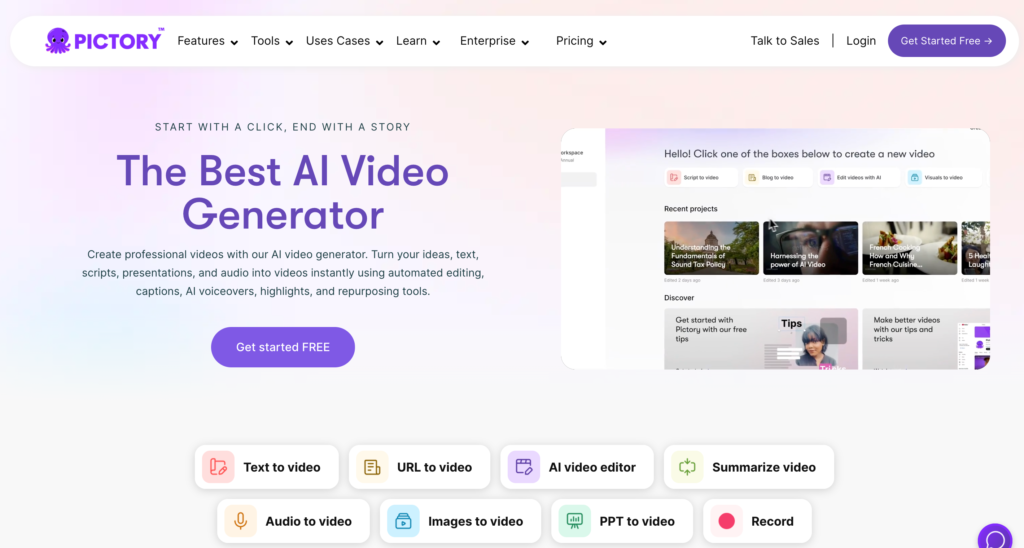
Whenever you want to repurpose your written content into engaging videos, Pictory is the tool you’ll find yourself reaching for.
It makes turning blog posts, articles, or long-form content into short, digestible videos incredibly easy. This is perfect for you when you want to expand your reach, drive engagement, and give your audience multiple ways to consume your content – without spending hours in a video editor.
What you’ll love most about Pictory is how intelligently the AI works. You can paste your blog or script, and the platform automatically identifies key points, selects visuals, adds captions, and generates a polished video.
You don’t need to manually pick clips or adjust timing; this AI handles all the heavy lifting, saving you a lot of time.
It’s also amazing for social media repurposing. You can create multiple short videos from a single blog post, each optimized for platforms like YouTube Shorts, Instagram, or LinkedIn.
This helps you reach a wider audience while keeping your content consistent.
Whenever you want to turn text into high-quality video content quickly and efficiently, Pictory is the AI editor you can rely on.
Opus Clip – Best for Creating Viral Short Clips
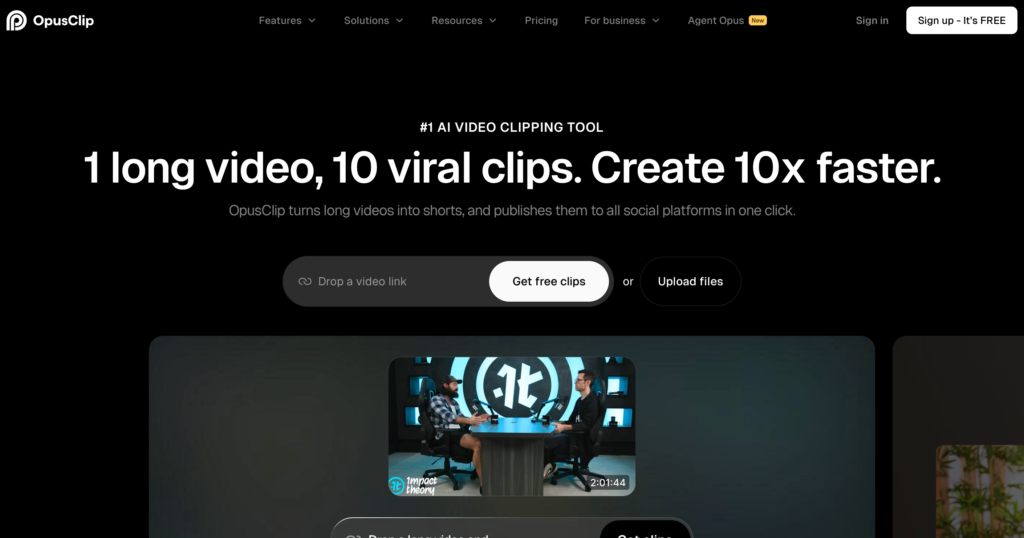
If you spend time creating content for social media, Opus Clip is one of those tools that will save you hours while boosting your engagement.
The first time you try it, you’ll be blown away by how quickly it transforms your long-form videos into short, punchy clips ready for TikTok, Instagram, or YouTube Shorts. What makes Opus Clip stand out for you is its AI-driven ability to detect key moments, highlights, and exciting segments, automatically trimming and formatting them into attention-grabbing shorts.
It’s like having a personal editor who knows exactly what your audience will love.
You’ll love how fast and intuitive it feels. Imagine working on a 20-minute tutorial and needing several 30-second highlights for social promotion.
Now you don’t need to spend hours cutting and editing, but Opus Clip handles it in minutes.
Beyond trimming, it automatically adds captions and adjusts the video format for different platforms – a huge time-saver.
This AI video editing tool even suggests the most engaging parts you might have overlooked, which is surprisingly useful when you want content that can go viral.
Opus Clip is not made for cinematic storytelling or stylized productions, but if your focus is social media growth and short-form content, it’s a total game-changer.
You’ll find yourself relying on it whenever you want to maximize reach, engagement, and efficiency.
For creators who want to turn long-form videos into viral-ready shorts quickly in 2026, Opus Clip becomes one of your go-to tools.
It’s like having a smart, fast editor that never sleeps, helping your content perform at its best.
Wondershare Filmora – Best for Beginners with AI Features
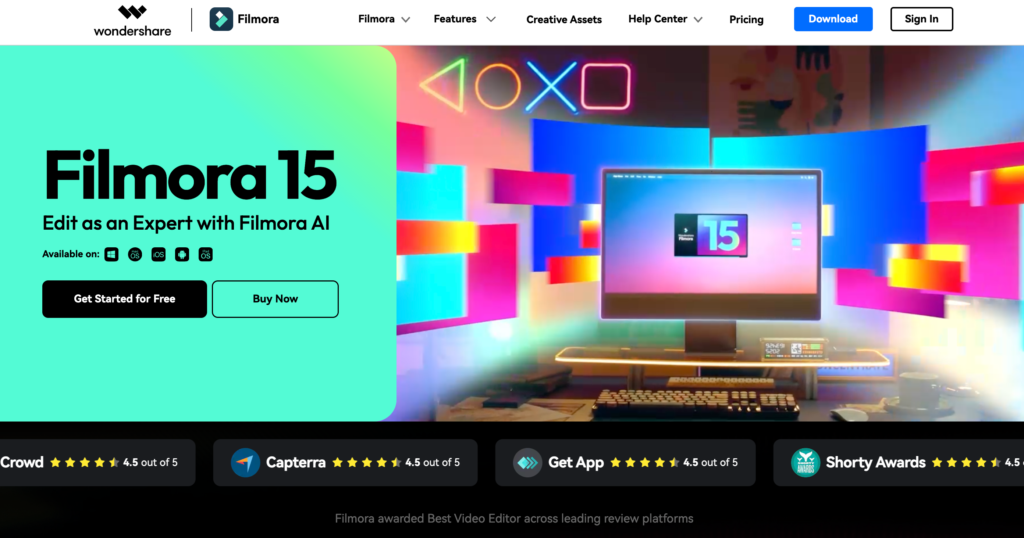
If you’re just starting your journey in video creation, Wondershare Filmora is one of those tools that will make everything feel approachable.
I have been using Filmora for the last 5 years.
The first time you open it, you’ll be surprised by its clean and intuitive interface. No clutter, no overwhelming timelines, just a workspace that invites you to create.
What will really catch your attention are the AI-powered features. From auto-background removal to smart motion tracking and AI-driven filters, Filmora lets you add professional touches without needing advanced skills or expensive gear.
You’ll appreciate how Filmora balances simplicity and power. Imagine working on a tutorial video for social media. Normally, trimming, adding captions, and syncing audio would take hours, but with Filmora’s AI tools, the process becomes almost effortless.
The auto-captioning works surprisingly well, and the AI enhancements make your clips look polished even if you’re still learning the basics.
It’s also perfect for experimenting. You can try out transitions, visual effects, and animations without getting lost in technical settings.
You’ll find yourself turning to Filmora whenever you want to make engaging, professional-looking content without the complexity.
For anyone starting out in 2026 who wants a simple yet powerful video editor with smart AI features, Wondershare Filmora becomes one of your top go-to tools. It’s like having a friendly guide helping you make your videos look great from day one.
InVideo – Best for Marketing & Promo Videos
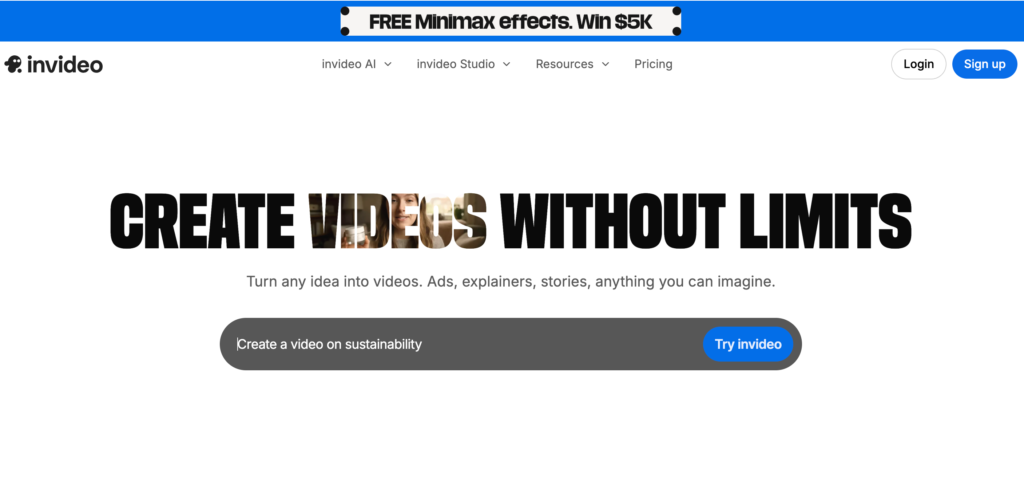
If you often need to create marketing or promotional content quickly, InVideo is one of those tools that will make the whole process feel effortless for you.
It’s very fast to turn a simple script or idea into a polished, professional-looking video.
What makes InVideo special for you is the way it blends AI with practical marketing features. It suggests templates, layouts, and visuals that match your content, while still giving you full freedom to customize everything to your brand.
You’ll especially love how InVideo handles content repurposing. Imagine working on a social media campaign where you have one long-form video but need multiple clips for Instagram, YouTube, and LinkedIn.
InVideo helps with scene selection, transitions, and even voiceovers, saving you a ton of time while keeping your content polished and engaging.
inVideo is perfect for marketers, small businesses, and creators focused on promotion.
You’ll find yourself relying on it whenever you want high-quality, attention-grabbing videos that are ready to publish fast.
For anyone creating marketing campaigns or promo videos in 2026, InVideo becomes one of your go-to AI tools.
It’s like having a creative partner that helps you produce professional, conversion-focused videos without the usual stress or complexity.
Canva Magic Studio – Best for Easy AI Video Creation
Want to create a quick video without dealing with complicated software? Canva Magic Studio will feel like a lifesaver for you.
I have been using this video editor for the last 2 years, and I can say with my experience, the first time you try it, you’ll be amazed at how intuitive everything feels.
You can start with a blank canvas or pick from hundreds of ready-made templates, type in your ideas, and the AI instantly helps turn them into a visually appealing video.
This is perfect for you when making social media content, announcements, or quick promo clips.
What I love about Canva Magic Studio is how it blends simplicity with creative flexibility. You can adjust animations, colors, text, and images with just a few clicks, and the AI suggestions often give you ideas you might not have thought of.
But it has actually limited features. It’s better up to 1-minute videos, but not ideal for longer videos.
Real-World AI Video Editing Workflows (Step-by-Step)
Now that we know all 15 AI video editing tools, let’s walk through a workflow I actually use in real projects, combining several AI video editors to save time and get professional results.
- Step 1: Planning and Script Creation
Before touching any editor, I always start with a clear idea or script. Tools like ChatGPT or Notion AI help me structure my script for clarity, pacing, and engagement. For tutorial or explainer videos, I break my script into sections that will become individual scenes, making editing much smoother later. - Step 2: Recording or Generating Footage
Depending on the type of content, I either record live footage or use AI-generated videos. If I’m doing talking-head content, tools like HeyGen or Synthesia allow me to create professional avatar videos directly from the script. For cinematic or experimental visuals, I use Runway ML, Pika Labs, or Luma AI to generate short clips that match my script. - Step 3: Editing & Assembly
Once I have all the footage, I import it into editors like Descript, VEED.io, or Wisecut. Here, AI handles tasks like auto-trimming silences, syncing subtitles, enhancing audio, and even suggesting cuts. This step usually cuts my editing time in half because the AI does the repetitive work I used to do manually. - Step 4: Adding Effects & Enhancements
If my video needs overlays, transitions, background removal, or special effects, I switch between tools like Runway ML or CapCut for AI-powered effects. I also sometimes use Canva Magic Studio or InVideo AI to add polished text animations, branded elements, or marketing-specific visuals. - Step 5: Repurposing & Social Media Optimization
Finally, I use Opus Clip, CapCut, or VEED.io to create multiple versions optimized for YouTube Shorts, Instagram Reels, and TikTok. AI helps with resizing, cropping, auto-captioning, and highlighting the most engaging moments.
By following my workflow, you can go from a raw script to a fully polished, multi-platform-ready video in a fraction of the time it used to take.
The key is knowing which AI tool to use at each step, letting AI do the heavy lifting while you focus on creativity and storytelling.
Pricing Breakdown: Free vs Paid AI Video Editors
One of the first questions that might come to your mind when exploring AI video editors is, “Do I really need to pay for this?” The answer really depends on the type of content you create, your goals, and how often you produce videos.
Over the past year, I’ve tested both free and paid AI editors, and here’s what I’ve learned.
Free AI video editors like CapCut, VEED.io (free tier), and Canva Magic Studio are amazing for beginners or creators on a budget.
They allow you to create polished, social-media-ready videos without paying a dime. You get access to essential features like trimming, auto-subtitles, basic effects, and even some AI enhancements.
Personally, I often use CapCut or Canva Magic Studio when I’m producing quick social clips or experimenting with ideas because they’re fast, intuitive, and don’t require a subscription.
The main trade-offs with free versions are watermarks on exported videos, limited exports per month, and restricted access to advanced AI features.
On the other hand, paid AI editors like Runway ML, Descript (Pro), Luma AI, InVideo AI, and Adobe Premiere Pro with Firefly AI unlock the full potential of AI-powered video creation.
Subscriptions usually range from $12–$60 per month, depending on the tool, giving you access to high-resolution exports, advanced AI effects, unlimited cloud storage, and priority support. These paid tools are great when you need cinematic-quality content, complex edits, or AI-generated visuals that stand out – things you just can’t achieve fully with free software.
The way I see it, free tools are perfect for experimenting, learning, and creating everyday content, while paid editors are an investment for serious creators who want speed, advanced features, and professional-quality output.
For YouTube in 2026, you can combine both: free tools for quick edits and paid platforms for high-stakes projects. This way, you’ll get the best of both worlds without overspending.
How to Choose the Right AI Video Editor for Your Needs
- Identify Your Content Type: Determine if you’re creating talking-head videos, cinematic clips, short-form social media content, or marketing promos. For example, Descript, Wisecut, and HeyGen are ideal for tutorials and talking-head videos, while Runway ML, Luma AI, and Pika Labs excel at cinematic or experimental clips. Opus Clip, CapCut, and VEED.io work best for social media virality.
- Consider Experience Level and Time Constraints: Beginners benefit from intuitive, user-friendly tools like Canva Magic Studio, Wondershare Filmora, or free versions of VEED.io, while professionals may prefer the depth of Adobe Premiere Pro with Firefly AI.
- Evaluate Your Budget: Free tools are perfect for learning, experimentation, and small-scale projects, but paid editors unlock high-resolution exports, advanced AI features, and faster workflows. Many creators, including me, mix free and paid tools depending on project complexity.
- Check AI Capabilities: Some tools specialize in script-to-video generation (Synthesia, HeyGen), others focus on trimming, auto-subtitles, and editing (Wisecut, VEED.io), while some excel at cinematic or 3D effects (Luma AI, Runway ML). Match the AI features to your needs.
- Prioritize Workflow Efficiency: Consider how the editor fits into your overall video production process. Tools that save time on repetitive tasks (like auto-subtitles, trimming, or captioning) allow you to focus on storytelling and creativity.
By keeping these factors in mind, you can confidently choose an AI video editor that saves time, enhances creativity, and produces professional results, no matter your skill level or content type.
Conclusion
If you’ve made it this far, you probably realize just how transformative AI video editors have become for content creators in 2026.
From saving hours on tedious edits to generating cinematic visuals, AI is no longer just a tool; it’s a creative partner.
When it comes to me as a marketer, I use a mix of editors depending on the project: free tools like CapCut and Canva Magic Studio for quick social clips, and professional platforms like Runway ML, Luma AI, and Adobe Premiere Pro with Firefly AI for high-quality, cinematic content.
After all, there’s no single “best” editor for everyone. Your choice should depend on your content type, skill level, budget, and the AI capabilities you need.
For talking-head videos, I rely on Descript, Wisecut, or HeyGen. For short-form viral content, Opus Clip and VEED.io are lifesavers. And when I want experimental or cinematic AI videos, Pika Labs and Luma AI are my go-to tools.
Ultimately, the right AI video editor empowers you to focus on storytelling and creativity instead of repetitive technical work.
By combining the right tools for your needs, you can produce professional, engaging, and attention-grabbing videos faster than ever.
AI video editors aren’t replacing creators, but they’re amplifying our potential.
For any YouTube creator, marketer, or social media enthusiast in 2026, exploring these AI tools is no longer optional; it’s essential.
FAQs
Read also,